
Odoo Integration with Saudi ZATCA E-Invoicing (FATOORA)
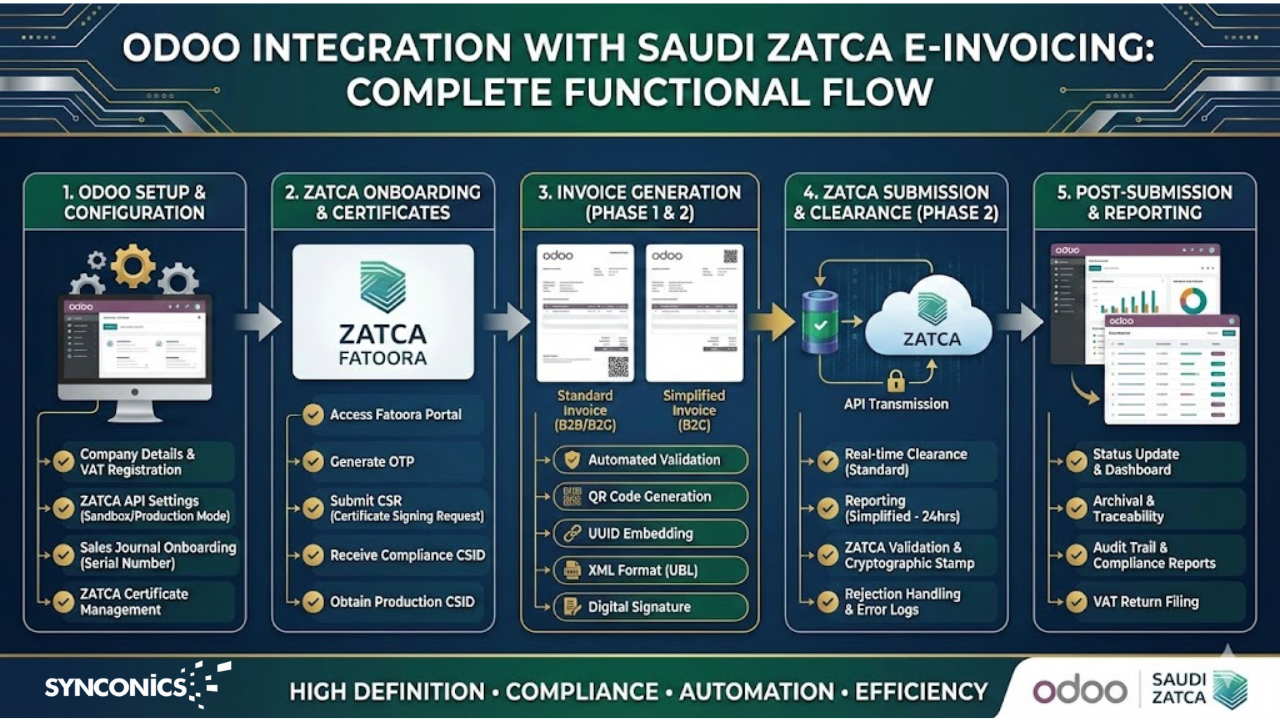
Saudi Arabia has taken a major leap toward digital tax compliance with the introduction of mandatory e-invoicing (FATOORA). For businesses operating in the Kingdom, compliance with the regulations issued by the Zakat, Tax and Customs Authority (ZATCA) is no longer optional it is a legal requirement.
At the same time, companies expect their ERP systems to handle compliance without disrupting daily operations. This is where Odoo stands out.
With native Saudi localization and standard ZATCA Phase-2 integration, Odoo enables businesses to issue, clear, report, and archive e-invoices seamlessly, while staying fully aligned with Saudi regulations.
This blog explains what ZATCA e-invoicing is, how Odoo integrates with it, and why Odoo is one of the best ERP choices for Saudi businesses.
Fatoora App Download Here:
https://apps.odoo.com/apps/modules/14.0/sync_payment_myfatoorah
What is Saudi ZATCA E-Invoicing (FATOORA)?
Saudi ZATCA E-Invoicing (FATOORA) is a government-mandated digital invoicing system introduced by the Zakat, Tax and Customs Authority to improve tax compliance and transparency in Saudi Arabia. It requires businesses to generate, store, and share electronic invoices in a standardized format, replacing paper invoices.
FATOORA helps reduce tax evasion, ensures real-time reporting, enhances operational efficiency, and supports Saudi Arabia’s Vision 2030 digital transformation goals for businesses.
ZATCA introduced e-invoicing to ensure:
- Transparency in tax reporting
- Reduction in tax evasion
- Standardized electronic invoice formats
- Real-time or near real-time invoice validation
ZATCA Implementation Phases
Phase 1: Generation Phase (Dec 2021)
Businesses must generate electronic invoices with:
- QR codes
- Mandatory VAT details
- Structured invoice data
Phase 2: Integration Phase (Clearance & Reporting)
Businesses must:
- Integrate their systems with ZATCA
- Send invoices electronically for clearance (B2B)
- Report simplified invoices (B2C)
- Use cryptographic stamps and UUIDsOdoo supports both phases using standard functionality.
Why Choose Odoo for ZATCA E-Invoicing?
Odoo is not just compliant it is practically aligned with Saudi business workflows.
Unlike bolt-on or third-party connectors, Odoo’s ZATCA integration is:
- Native
- Secure
- Auditable
- Upgrade-safe
It supports real business scenarios, not just theoretical compliance.
Key Features of Odoo ZATCA E-Invoicing Integration
ZATCA Phase-2 Compliance
Automatically generates, signs, and submits invoices in ZATCA-approved XML format for both B2B and B2C scenarios.
Real-Time Invoice Clearance & Reporting
Sends B2B invoices for clearance and B2C invoices for reporting directly to Zakat, Tax, and Customs Authority, with status tracking inside Odoo.
Automatic QR Code Generation
Creates ZATCA-compliant QR codes on invoice PDFs without any manual effort
Built-In Cryptographic Signing
Handles invoice hashing, UUID generation, and digital signing securely within Odoo.
Saudi National Address Support
Supports mandatory Saudi address fields such as building number, district, postal code, and city to avoid validation errors.
Seller & Buyer Identity Validation
Correctly maps VAT numbers, Commercial Registration (CR), and individual IDs to prevent common ZATCA warnings.
Clear Error & Warning Visibility
Displays ZATCA acceptance, warnings, or rejection reasons directly on the invoice for quick resolution.
Audit-Ready Invoice Archiving
Stores XML, PDF, QR code, and ZATCA responses together for easy audits and compliance checks.
Advantages for Saudi Businesses
Regulatory Confidence
Businesses stay compliant with evolving ZATCA regulations without constantly changing systems.
Zero Manual Work
Invoices are validated and submitted automatically no uploading, no re-keying.
Faster Audits
All invoices are archived with:
- XML
- PDF
- ZATCA response making audits stress-free.
Scalable for Growth
Whether issuing:
- 10 invoices a day
- or 10,000 invoices a day, Odoo handles volume without performance issues
Single Source of Truth
Accounting, VAT, invoicing, and compliance live in one system.
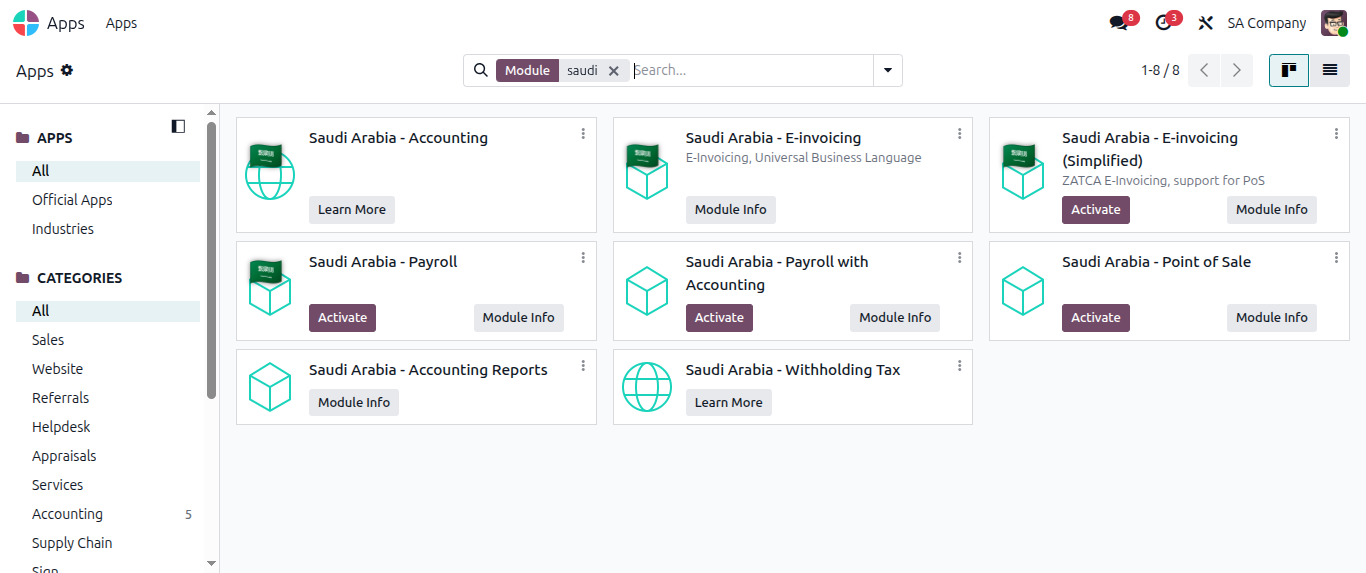
Step 1 - By going to Apps, the following applications must be installed in your Odoo Instance to get the benefit of Saudi Zatca E-Invoicing
1. Saudi Arabia - Accounting
2. Saudi Arabia - E-Invoicing
3. GCC invoice module

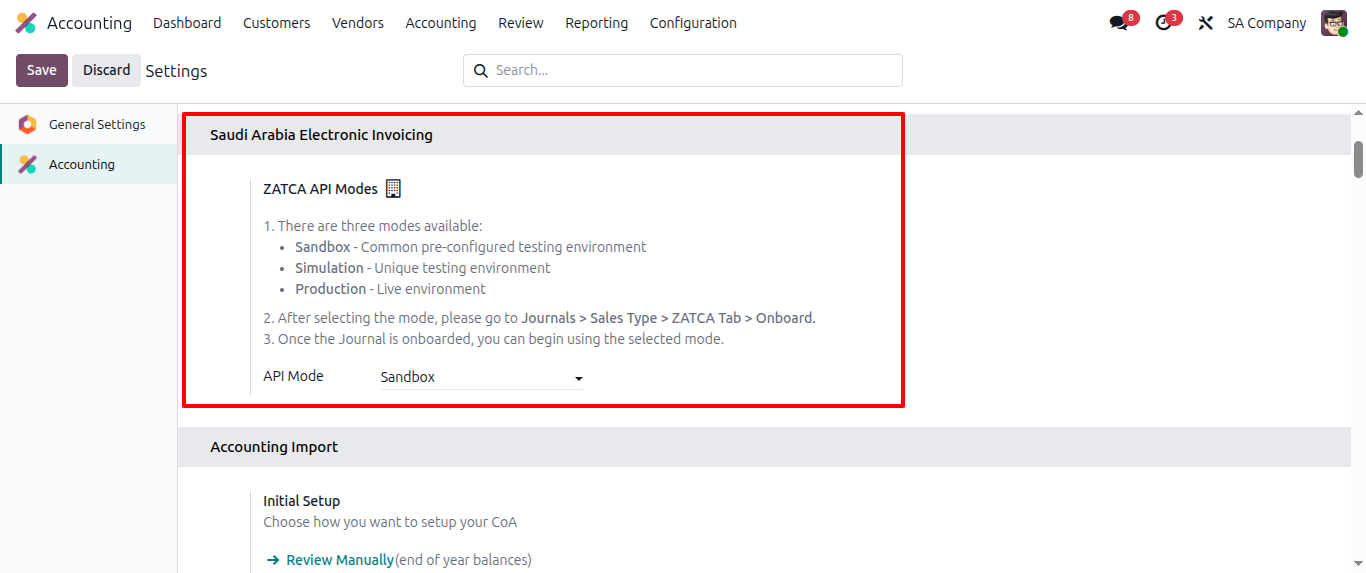
Step 2 - After installing the above applications, go to Accounting -> Settings, under the Saudi Arabia Electronic Invoicing section, you will find Zatca API Modes. Odoo supports 3 modes here
1. Sandbox - Common preconfigured testing environment
2. Simulation - Unique testing environment
3. Production - Live Environment
Please note:
1. Please make sure that before proceeding with the production environment, in case any mistakes happen here, it will cause a penalty to you
2. Once you proceed for production environment, you can not switch back
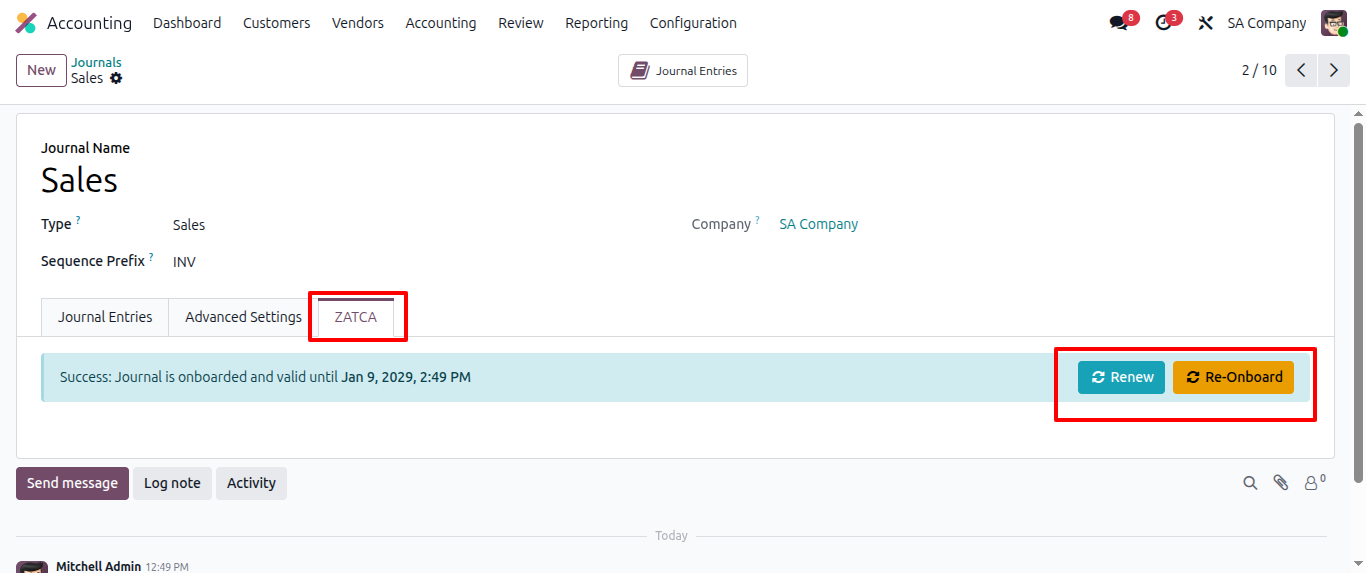
Step 3 - Go to Accounting -> Configuration -> Journals
Go to Sales Journal
Under the ZATCA tab, you will have to onboard this journal with the ZATCA portal
After success, the system will show you a message as defined in the following image
Certificate and Keys:
After the Accounting journal is onboarded, Odoo stores real time Certificate and key information
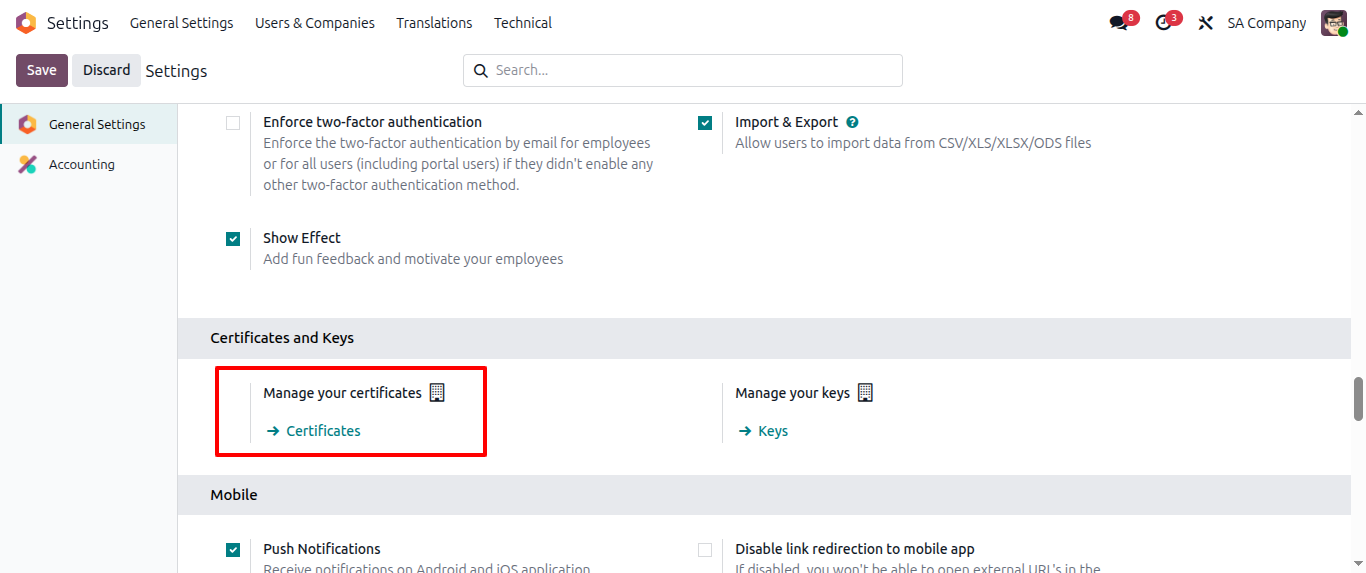
Just to cross-check, go to General Settings -> Certificate and Keys section
Go to Certificates:


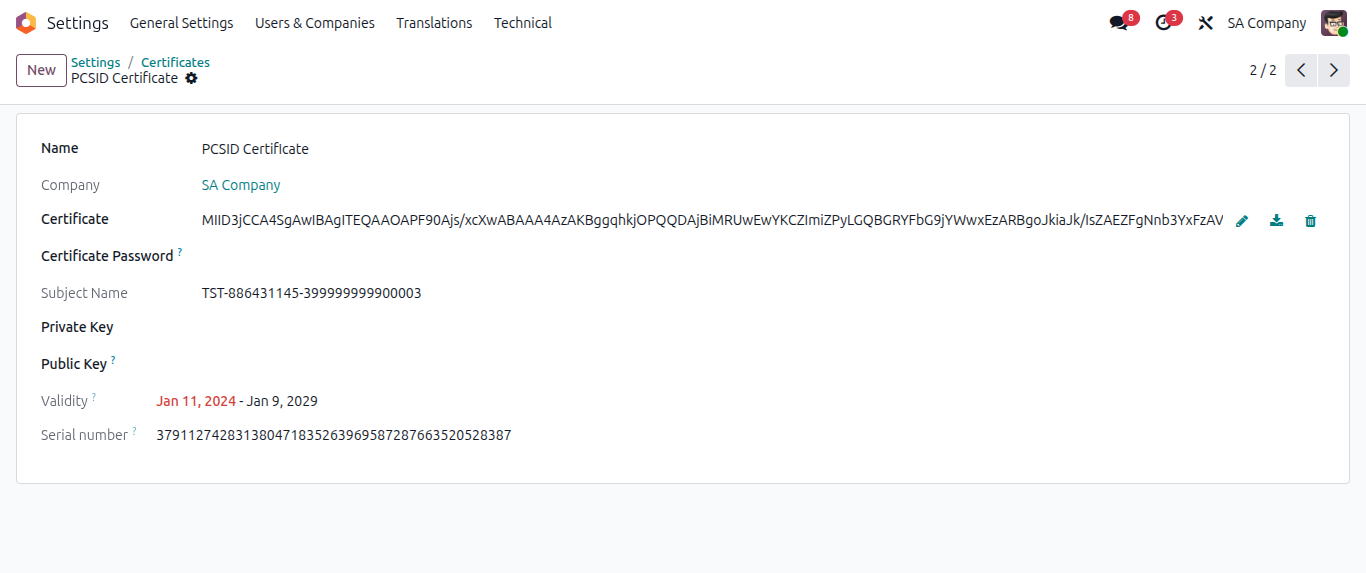
In this certificate, Odoo stores several pieces of information, like
- Certificate Name
- Company Name - selected
- Certificate file - in binary format
- Certificate password - if any
- Subject Name
- Private key
- Public key
- Validity
- Serial number
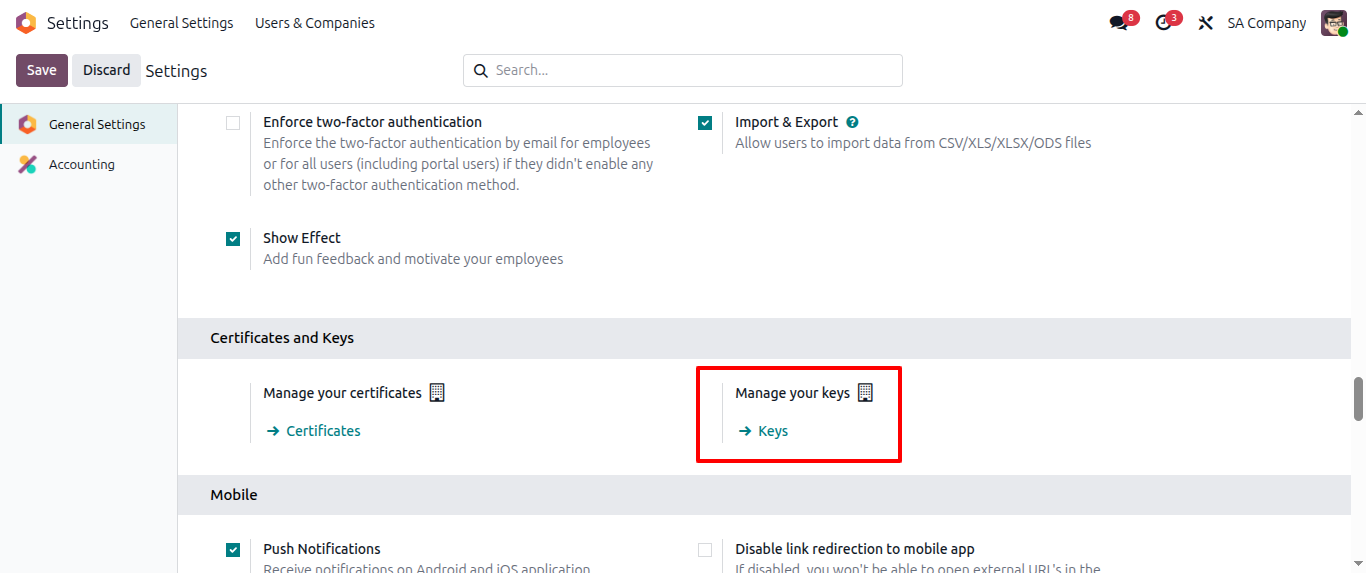
Go to General Settings -> Certificate and Keys tab
Go to Keys
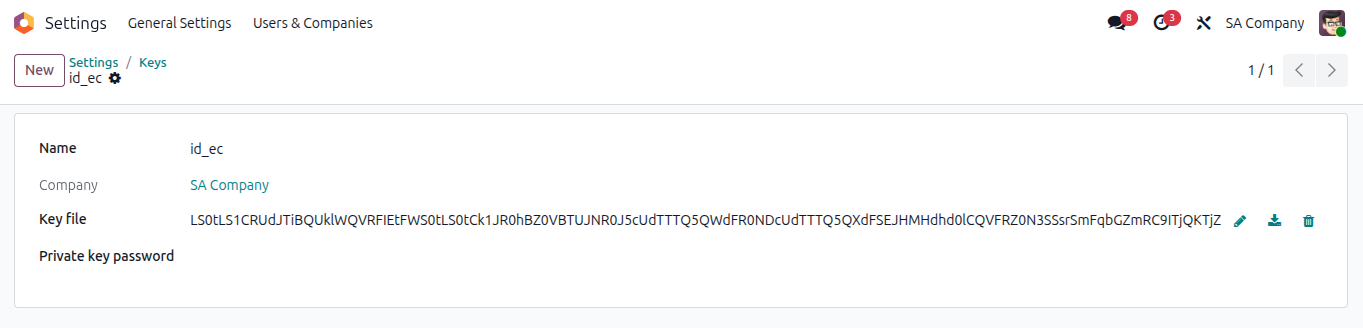
Here, Odoo will store key information like
- Name
- Company - selected
- Key file
- Private key password
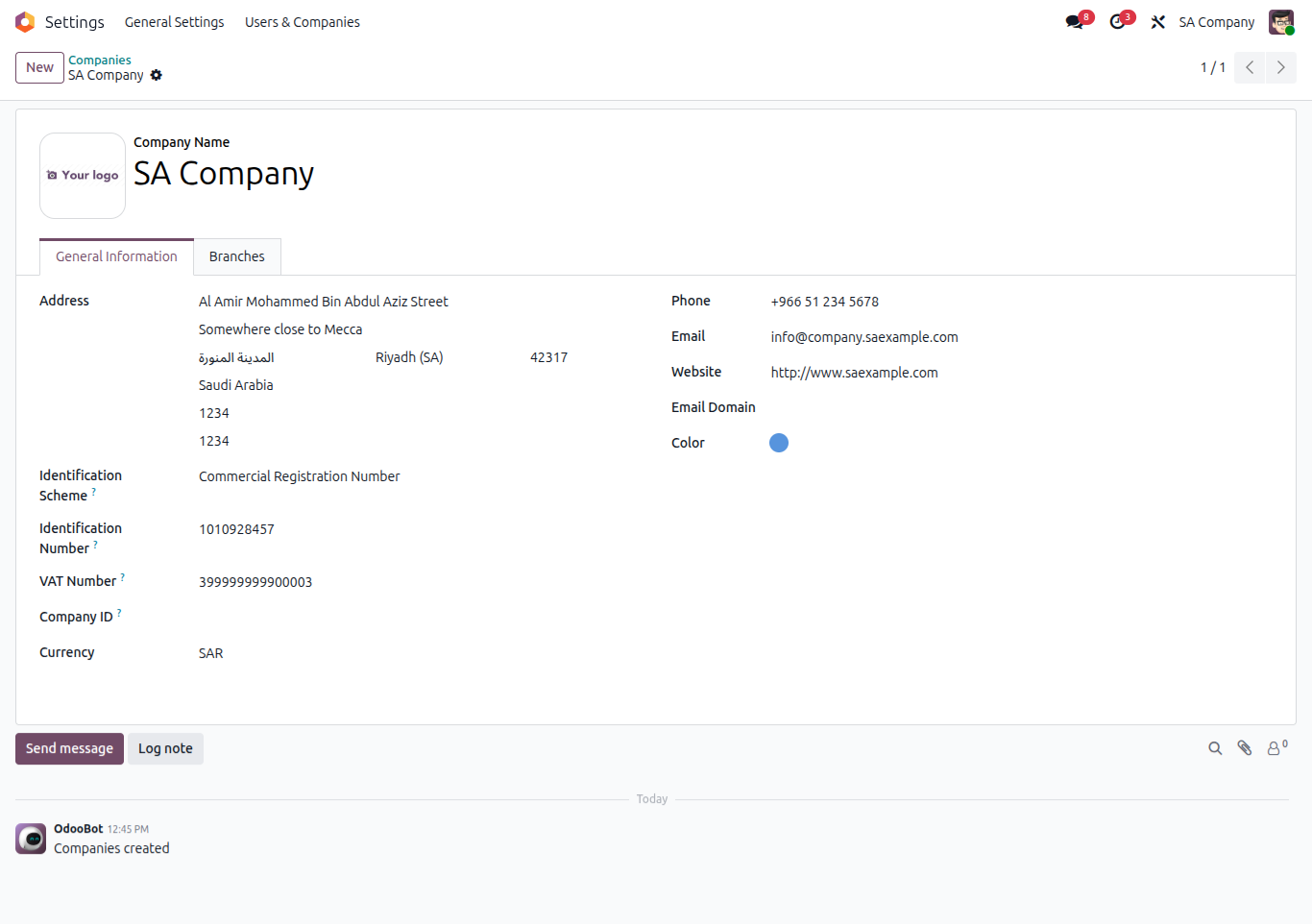
Step 4 - Configuration - Company details
Your company should have a valid address, city, state, zip code, and country based in Saudi Arabia, along with a proper Building number and Plot number
Select the Identification scheme; there are various options provided here, among which you select the Company Registration number
Write the proper company registration number, VAT number, etc.
Example - B2B
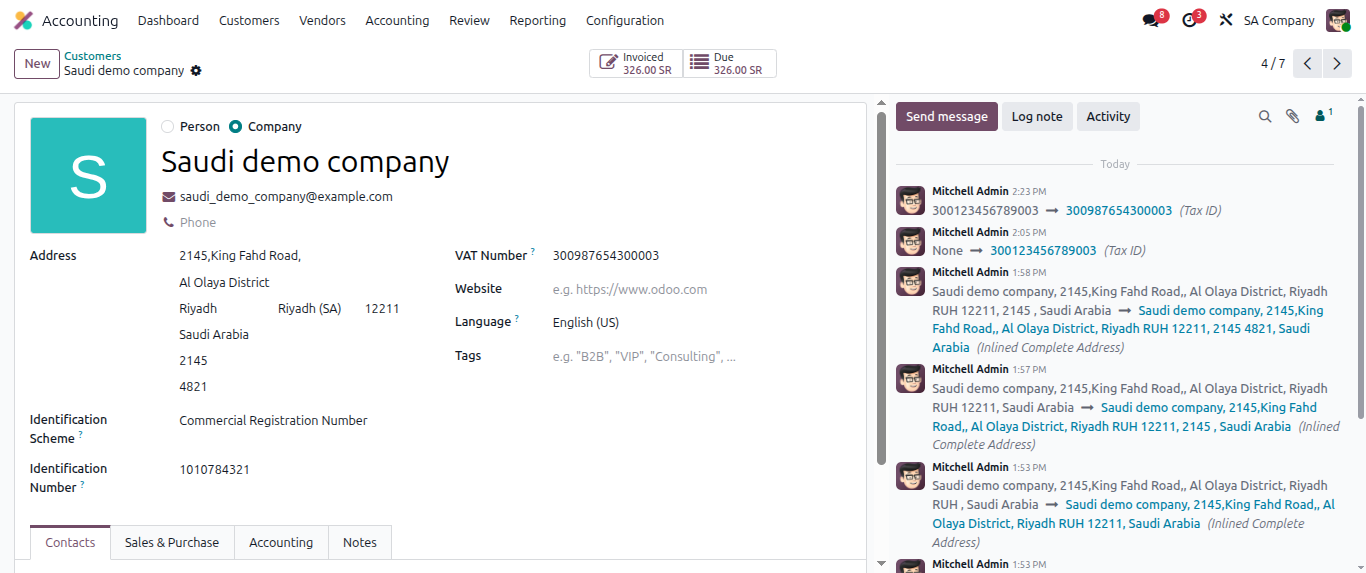
Step 1 - Go to Invoicing/Accounting -> Customer
Create a new company with a proper Name, email ID, Address, Identification scheme, and Identification number. Users can select various options as Identification schemes, such as Company Registration number, Other ID, etc.
Step 2 - Create a customer Invoice
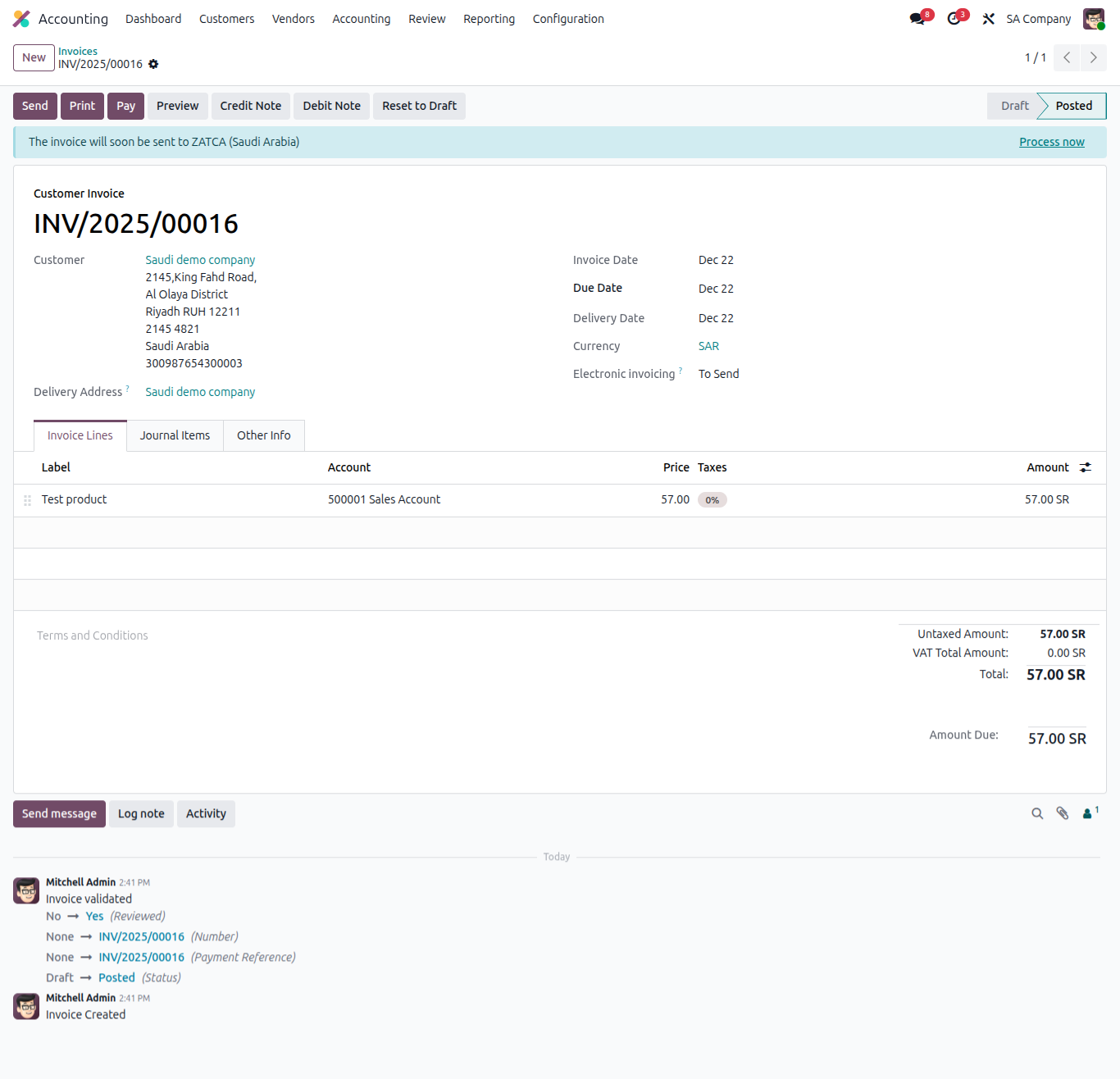
- Go to Invoicing/Accounting -> Customers -> Invoice
- Create an invoice with that configured company, in our example customer company is the audi demo company
- Generate Invoice lines
- Confirm invoice
User will see here a notification that this invoice will be processed with Zatca, you can also click on the Process Now button
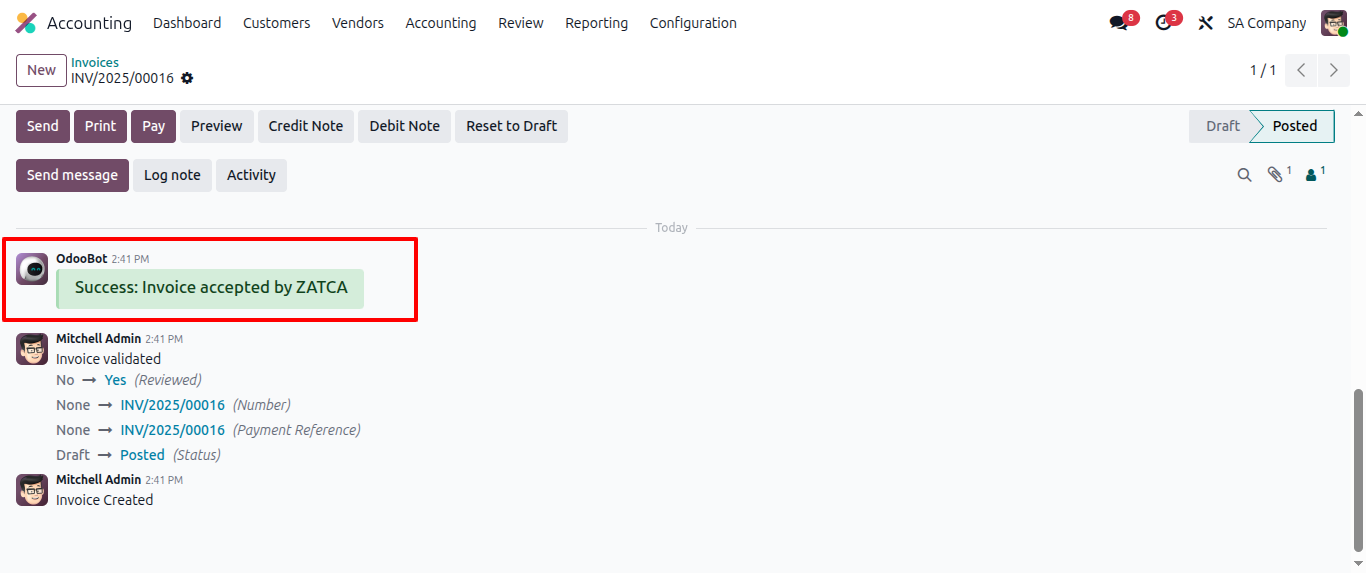
After an invoice is processed successfully at the Zatca portal, the system will show a successful message, as shown in the image below
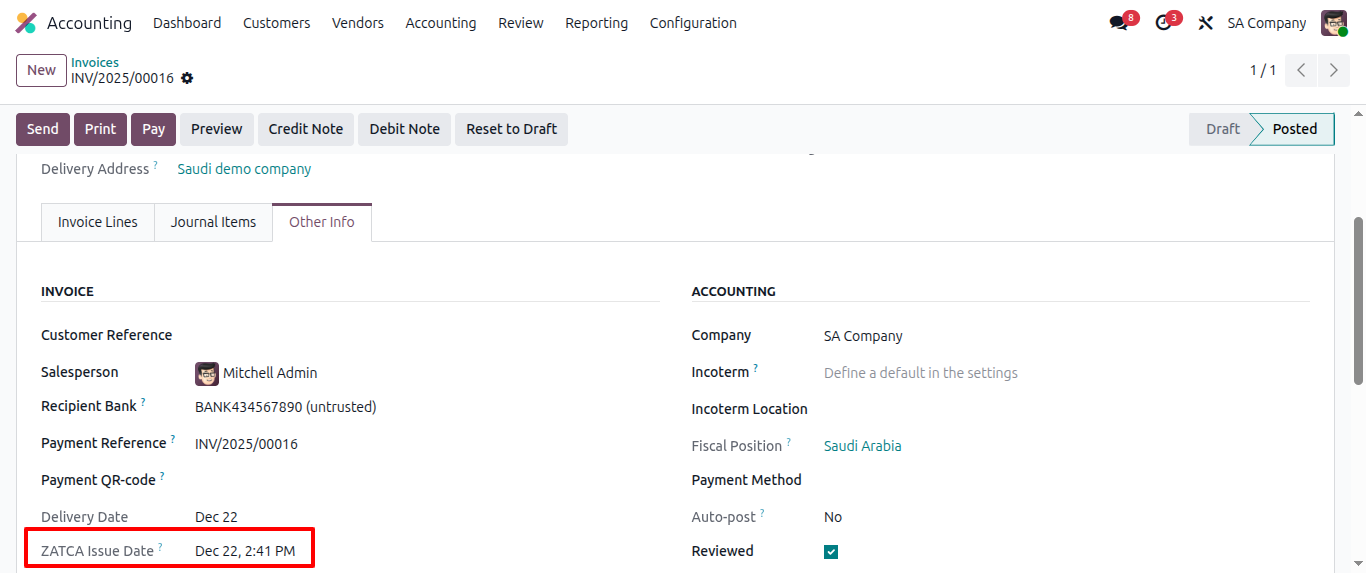
Please go to the Other Info tab of the relevant customer invoice, and you will be able to see the ZATCA Issue Date

On the list view, you will be able to see the E-Invoice status of your corresponding customer company invoice
Step 4 - XML - UBL file generation - EDI format
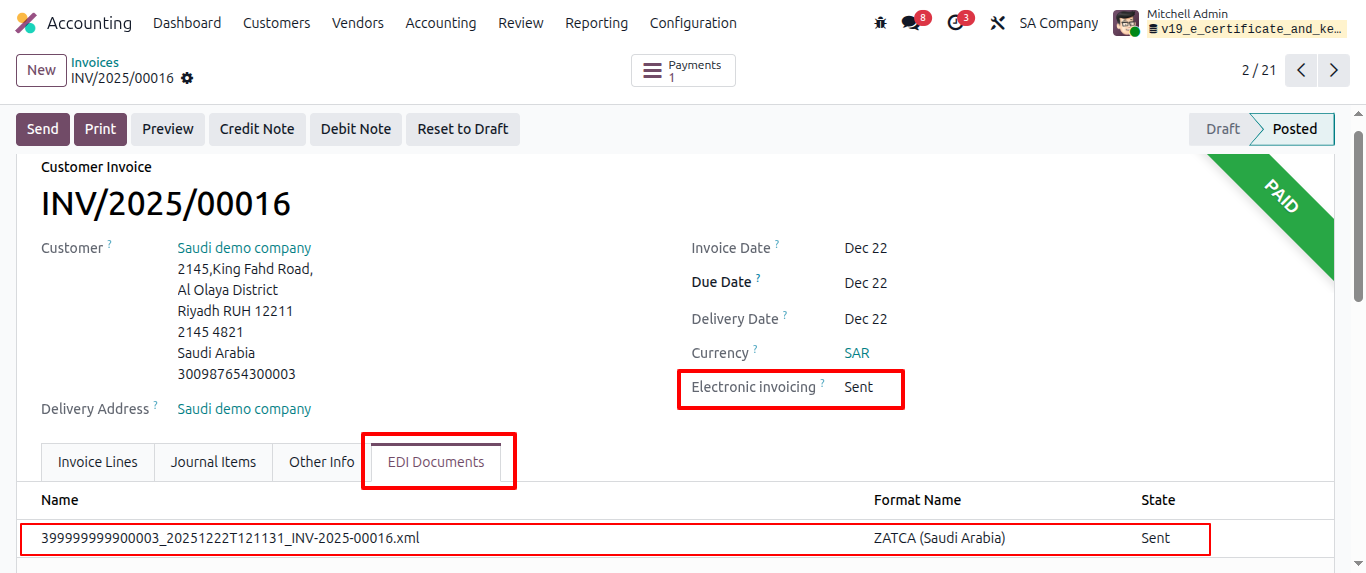
After a successful integration is done, the system will generate a UBL format XML file by going to the customer invoice - EDI documents tab
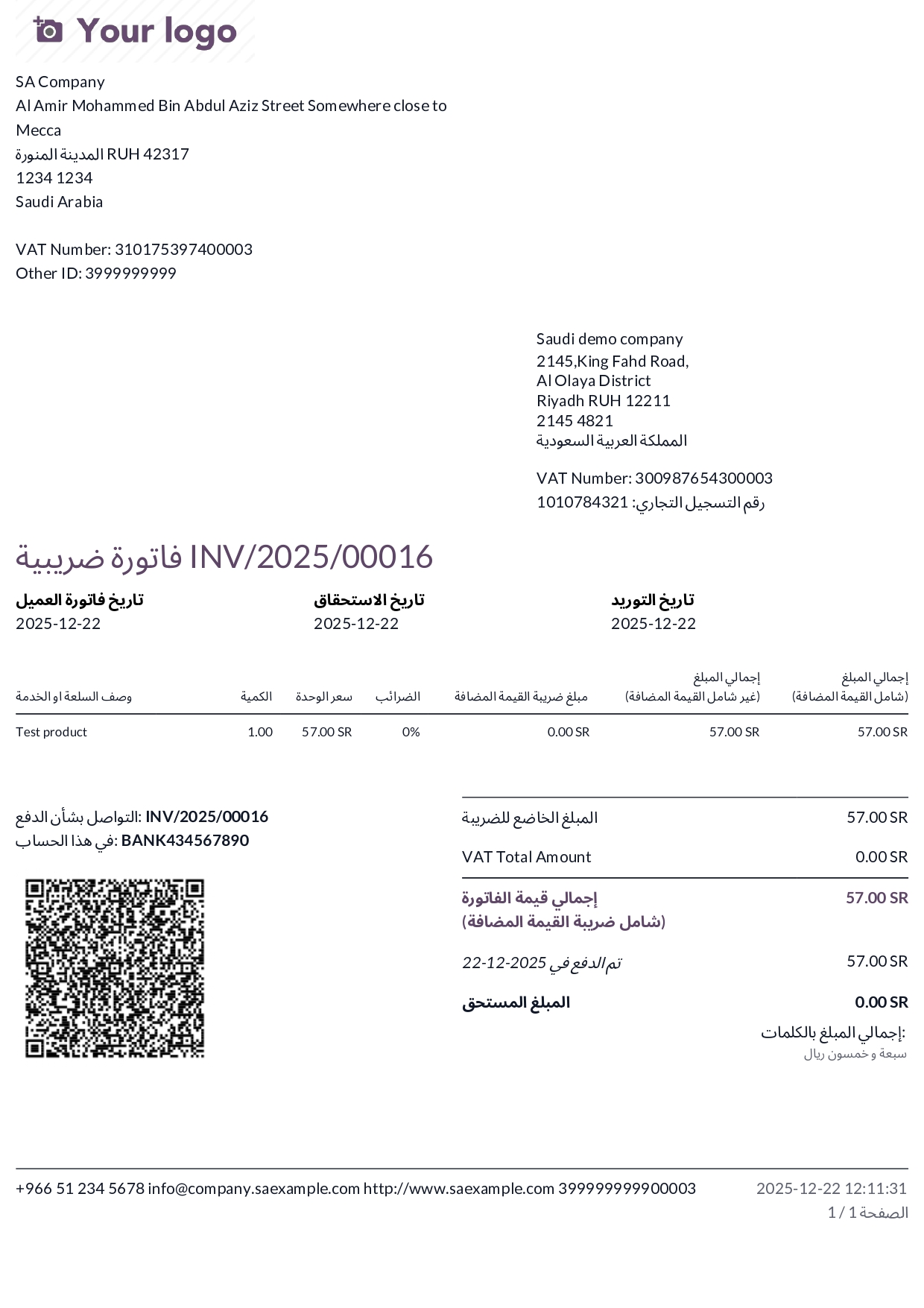
Step 4 - Generate Invoice PDF
Example - B2C
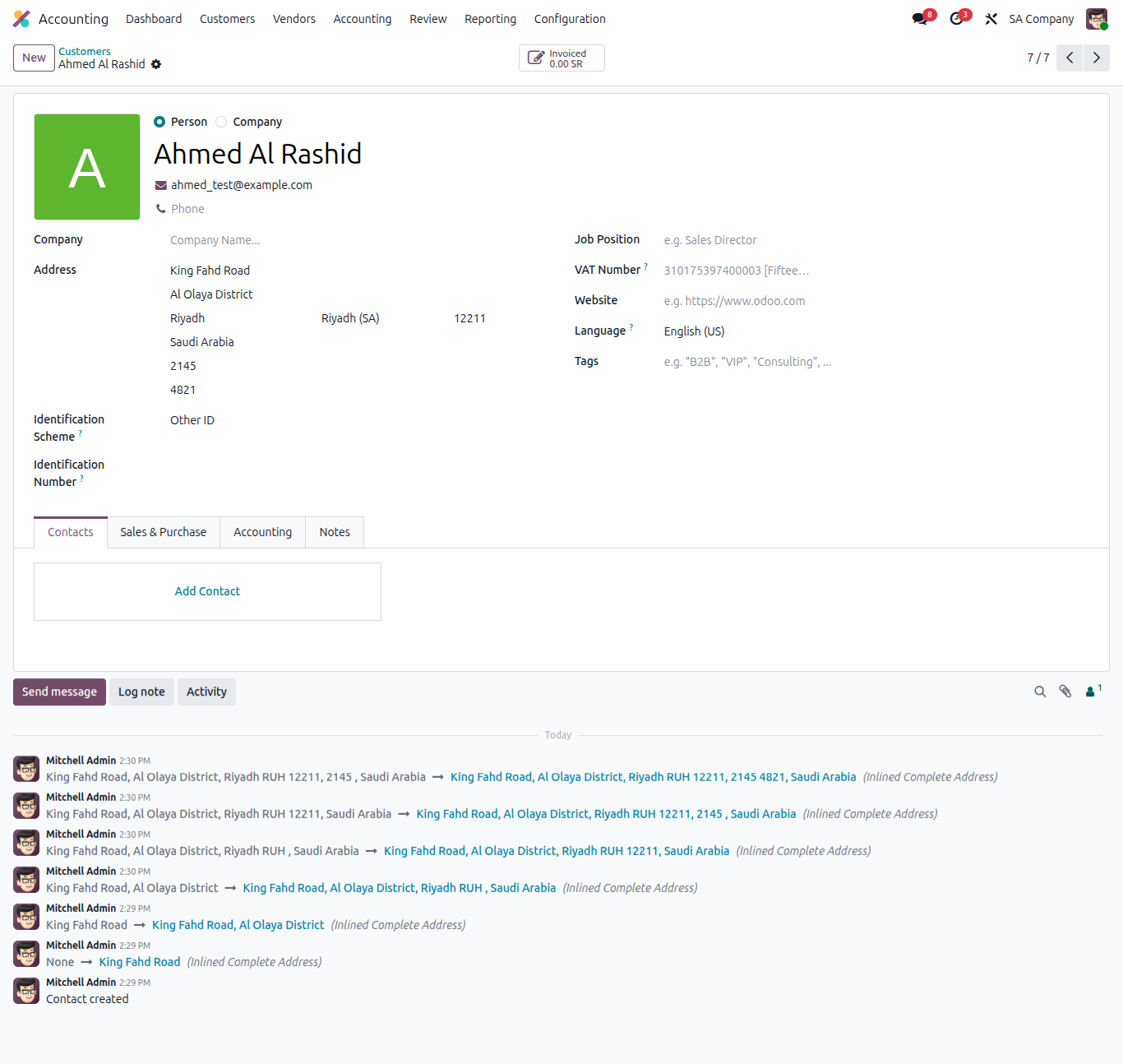
Step 1 - Create a customer Go to Invoicing/Accounting -> Customers
Here, when creating a new customer, please write down all necessary details like name, email ID, proper address, building number, plot number, and identification scheme Under the Identification scheme, you can also select various options like National ID, GCC ID, Iqama ID, Other ID, etc., or you can leave it blank as well
Step 2 - Generate customer Invoice
Go to Invoicing/Accounting -> Customer Invoices
Create an Invoice with the customer named as Ahmed Al Rashid and confirm it
Here system will show a notification like this invoice will be processed with the Zatca portal, if you want, you can manually process it as well
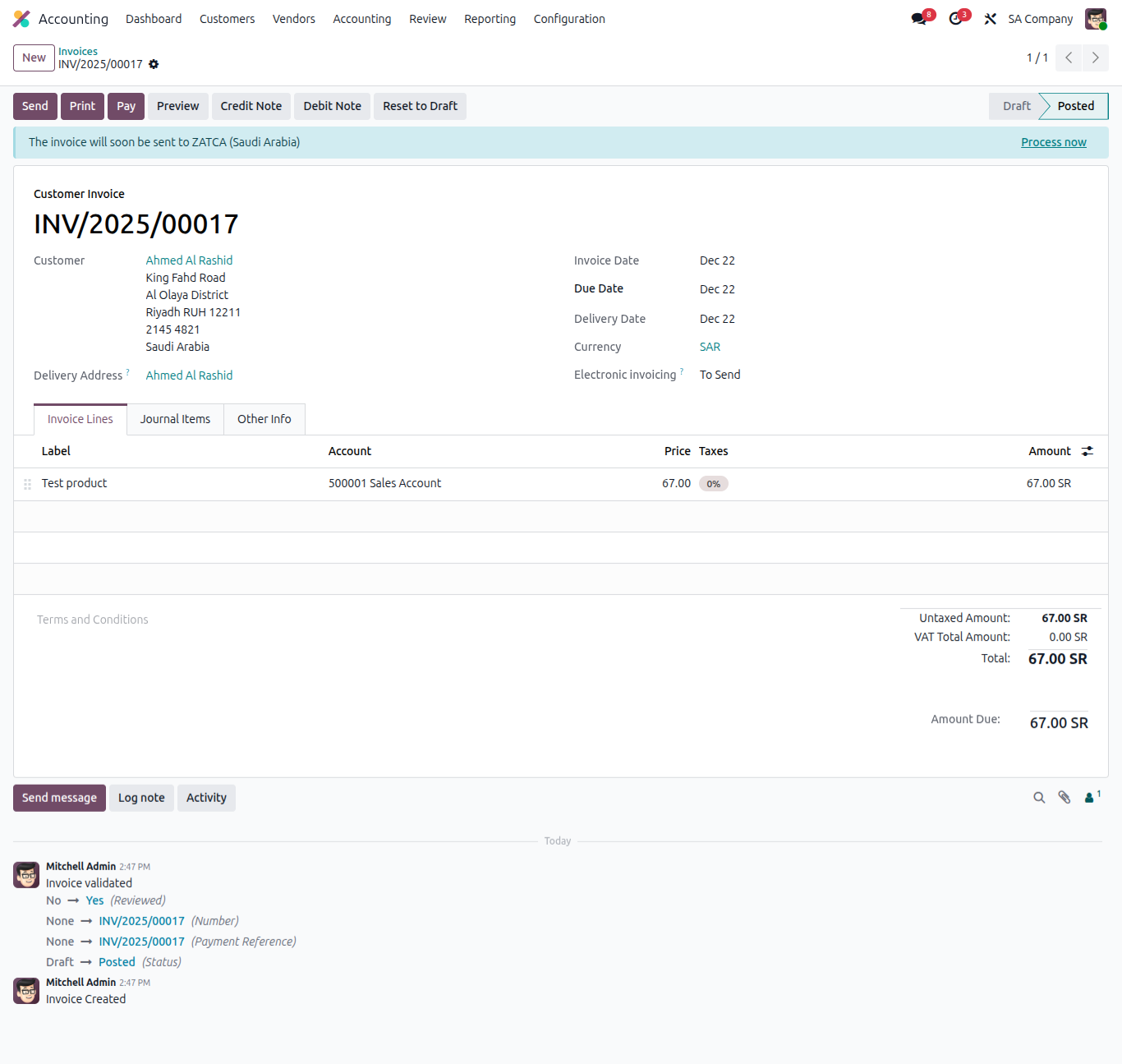
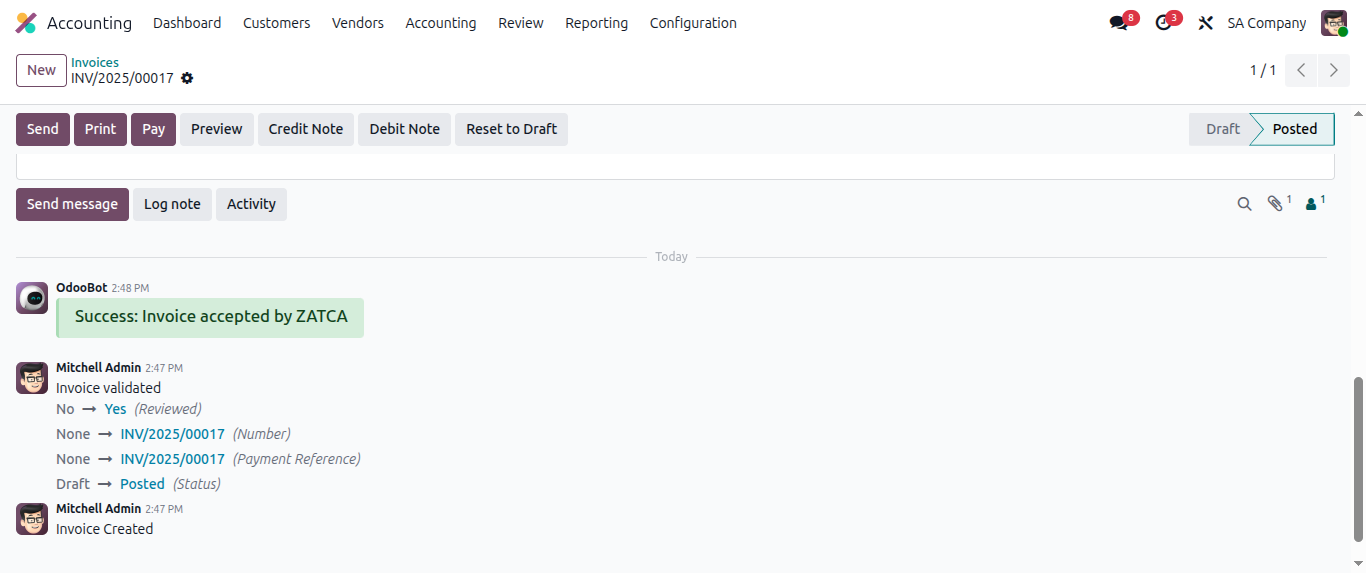
Step 3 - After an invoice is processed with the Zatca terminal successfully, the system will show you a success message in chatter of that relevant customer invoice.
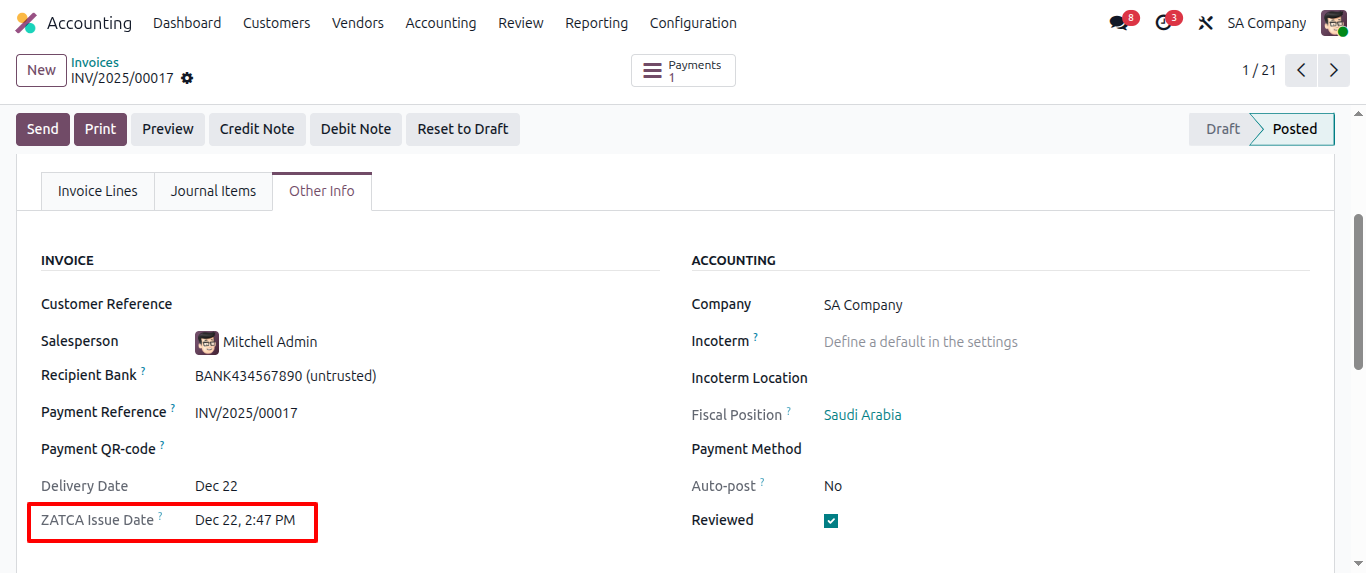
Step 4 - Go to the Other Info tab of the same Customer Invoice
You will be able to see the ZATCA Issue Date here
Step 5 - On the list view of customer invoices, you can see an Invoice status

Step 6 - XML - UBL file generation - EDI format
After a successful integration is done, the system will generate a UBL format XML file by going to the customer invoice - EDI documents tab
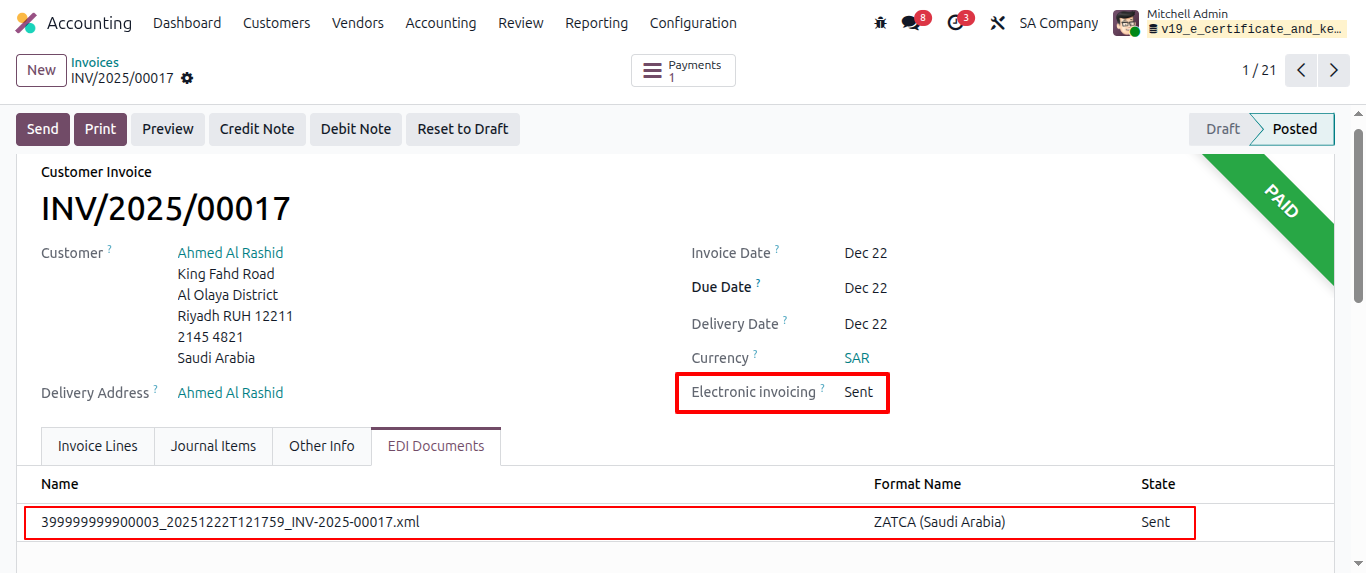
Step 7 - Generate Customer Invoice PDF
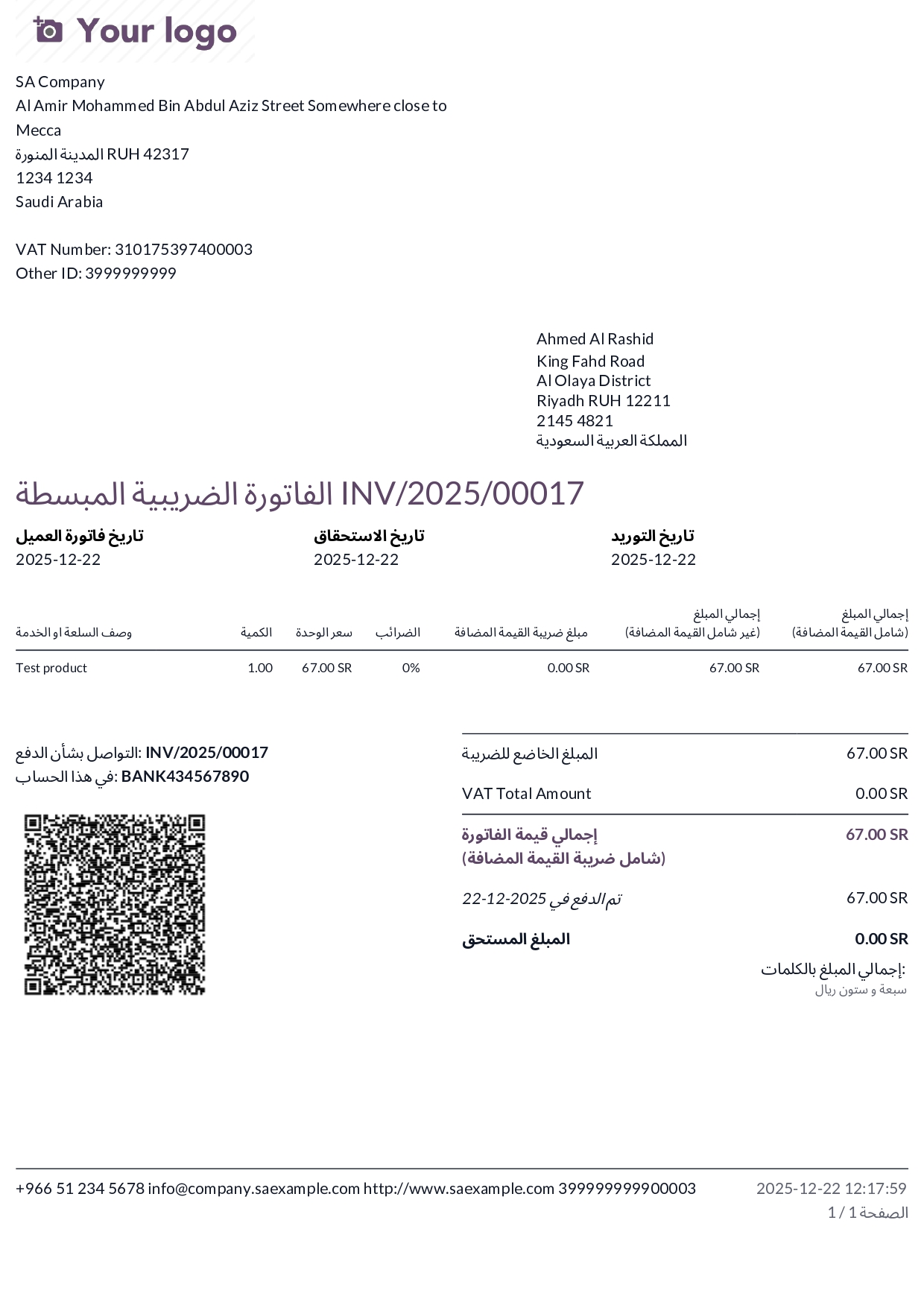
How to Configure?
Saudi ZATCA e-invoicing is more than a compliance requirement it is a shift toward structured, transparent, and digitally controlled invoicing. With Odoo, businesses can meet ZATCA requirements smoothly while keeping invoicing, accounting, and reporting within one unified system.
Odoo handles the technical complexity of clearance, reporting, and validation, allowing finance teams to focus on operations rather than regulations. Where business processes go beyond standard flows, targeted customization can further strengthen control and efficiency.
The result is a ZATCA-compliant invoicing setup that is practical today and ready for what comes next.
FAQs About
Odoo Integration with Saudi ZATCA E-Invoicing
Yes, once configured, Odoo submits invoices to ZATCA automatically without manual upload.
Yes, for B2C invoices, VAT is optional; for B2B invoices, it is mandatory.
The invoice remains legally valid, but warnings should be corrected for future invoices.
No, Odoo communicates directly with ZATCA APIs, so portal login is not required for daily invoicing.
Yes, Odoo supports branch-wise configuration with separate ZATCA identities.
Yes, Odoo automatically applies clearance for B2B and reporting for B2C invoices.
Incorrect buyer or seller identification data, especially Commercial Registration or ID fields.
Yes, invoices can be reset, corrected, and resubmitted from Odoo.
Yes, Odoo archives invoice XML, PDF, QR code, and ZATCA responses together.
No, as long as invoices are reported or cleared once connectivity is restored.
No, Odoo generates ZATCA-compliant QR codes using standard functionality.
Yes, invoice status is visible directly in Odoo with clear acceptance or rejection messages.
Customization FAQs
Automatic validation and blocking logic before sending to ZATCA requires customization.
Additional mandatory sector fields must be added through customization.
Strict blocking of invoice posting after rejection requires customization
Auto-retry or background resubmission workflows require customization.
retry or background resubmission workflows require customization.
Displaying ZATCA status on POS receipts needs POS report customization.
Custom dashboards and compliance KPIs require development.
Advanced audit and exception reporting requires customization.
Whether you have unique business requirements, need tailored Odoo customizations, or are looking for reliable Odoo ERP support, our experts are here to help.
Contact us at contact@synconics.com


